How to Use Bulk Create in Canva: The Ultimate Professional Guide
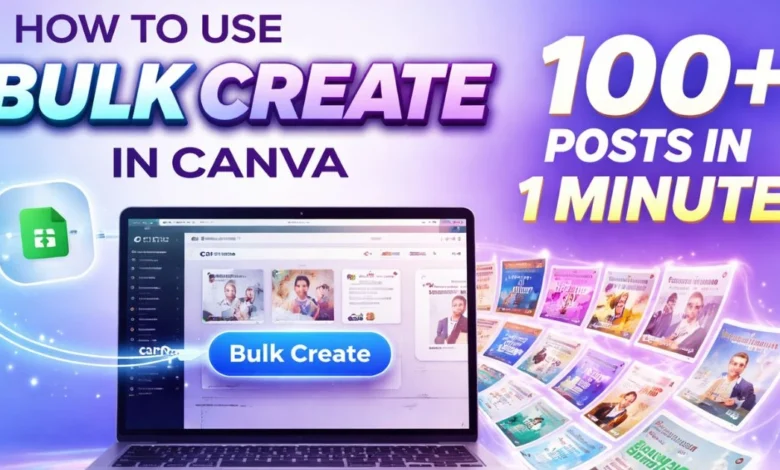
In today’s fast-paced digital world, knowing how to use Bulk Create in Canva can save you hours of manual work. Whether you’re managing social media posts, creating personalized certificates, or producing marketing assets, this feature transforms repetitive tasks into a fast, automated workflow. Professionals who master this tool can generate high-quality graphics at scale while maintaining brand consistency.
Understanding the Power of Bulk Create in Canva
Learning how to use Bulk Create in Canva starts with understanding data-driven design. Instead of manually entering content into each graphic, you feed your spreadsheet into a template, allowing Canva to automatically populate text, images, and other elements. This automation ensures:
- Brand consistency across all graphics
- Faster production for large campaigns
- High-quality output even for hundreds of designs
This approach shifts your workflow from individual editing to systematic automation, saving time and reducing errors.
Preparing Your Tools and Workspace
Before exploring how to use Bulk Create in Canva, ensure you have the following:
- Canva Pro or Enterprise subscription – Bulk Create is a premium feature
- Spreadsheet software – Google Sheets or Microsoft Excel works best
- Clean, organized data – Each column should represent a design element
- CSV export – Canva reads CSV files as the blueprint for your designs
Preparing your workspace ensures a smooth setup and prevents errors during batch generation.
Step 1: Structure Your Spreadsheet for Bulk Create
Your spreadsheet is the backbone of this process. To master how to use Bulk Create in Canva:
- Use clear column headers for text, dates, or images
- Avoid empty cells to prevent errors during import
- Export the spreadsheet as a CSV file for Canva
Example spreadsheet layout for social media posts:
| Title | Date | Image | Caption |
| Spring Sale | 03/15 | spring.jpg | “Fresh deals await!” |
| Summer Launch | 06/01 | summer.jpg | “Get ready for sunshine savings!” |
Step 2: Choose a Flexible Master Template
Your master template sets the foundation for all graphics. When learning how to use Bulk Create in Canva:
- Choose layouts with enough white space for longer text
- Use alignment and Tidy Up tools to position elements perfectly
- Lock fonts, colors, and styles to maintain brand consistency
A well-designed template ensures professional results across hundreds of generated pages.
Step 3: Map Data Fields Correctly
Mapping your spreadsheet data to template elements is crucial. Follow these steps to understand how to use Bulk Create in Canva effectively:
- Open your master template in Canva
- Navigate to Apps → Bulk Create and upload your CSV file
- Click each text box or image frame and select the corresponding spreadsheet column
This creates dynamic variables, turning static placeholders into automated content.
Watch this quick video to see exactly how to connect your CSV data in Canva:
Step 4: Generate Your Batch and Review
After mapping:
- Preview the batch to ensure everything fits correctly
- Click Generate to create a new project containing all your unique designs
- Conduct a quick check for overflow text or misalignment
Following these steps ensures that how to use Bulk Create in Canva results in high-quality, consistent graphics.
Step 5: Export and Organize Your Files
Efficient export is key for high-volume projects. Tips for optimizing your workflow when mastering how to use Bulk Create in Canva:
- Use compressed formats for digital use
- Use high-resolution formats for print materials
- Organize files into folders or zip archives for easy management
This ensures that production speed is matched by smooth organization of assets.
Manual vs. Bulk Create: Why Automation Wins
| Feature | Manual | Bulk Create |
| Speed | 5–10 mins per design | 100+ designs in minutes |
| Consistency | Risk of errors | Complete brand uniformity |
| Scalability | Limited | Virtually unlimited output |
| Editing | Individual tweaks | Global template adjustments |
Using Bulk Create turns repetitive tasks into automated workflows, freeing designers to focus on creativity.
FAQs About Canva Bulk Create
Can I use Bulk Create with the free version?
No, this feature is only available on Canva Pro or Enterprise subscriptions.
How many designs can I generate at once?
You can generate up to 100 pages per batch, but multiple batches can be run for larger projects.
Can images change automatically in Bulk Create?
Yes, by using image frames connected to spreadsheet columns, Canva swaps images dynamically across your batch.
Can this entire process be done on mobile?
No, setup and CSV uploads require a desktop browser for stability. You can view generated designs on mobile but not perform full batch setup.
What if my text exceeds the template box?
Ensure your master template boxes are large enough or use Canva’s overflow settings to avoid cutting off text.
Conclusion: Become a Bulk Create Pro
Mastering how to use Bulk Create in Canva transforms your workflow from manual editing to data-driven automation. From spreadsheets to polished templates, you can generate large batches with speed, accuracy, and professional quality. By integrating this tool into your design process, you save time, maintain brand consistency, and scale your creative output efficiently