How to Change WiFi Name on Any Router in Minutes
If you want to know how to change WiFi name on your router, the good news is that the process is quick and simple. Changing your WiFi name makes your network easier to find, manage, and recognize on phones, laptops, smart TVs, and other connected devices. The WiFi name is also called the SSID, which is the network name that appears when you search for available wireless connections.
Many people search for how to change WiFi name because the default router name often looks confusing or generic. In most cases, you can change it in just a few minutes using the router settings page or a mobile app.
What You Need Before You Start
Before learning how to change WiFi name, make sure your device is connected to the router and that you have the router login details. Most routers can be accessed through a web browser using 192.168.0.1 or 192.168.1.1, though the exact address is usually printed on the router sticker. You will also need the admin username and password, which are different from your WiFi password. If your internet company changed the default login details, use the provider app or check the router label carefully. Once you have these basics, how to change WiFi name becomes a very easy task.
Common Router Login Details
| Setting | Common Value |
|---|---|
| Router IP | 192.168.0.1 |
| Router IP | 192.168.1.1 |
| Username | admin |
| Password | admin |
| Best source | Router sticker |
How to Change WiFi Name
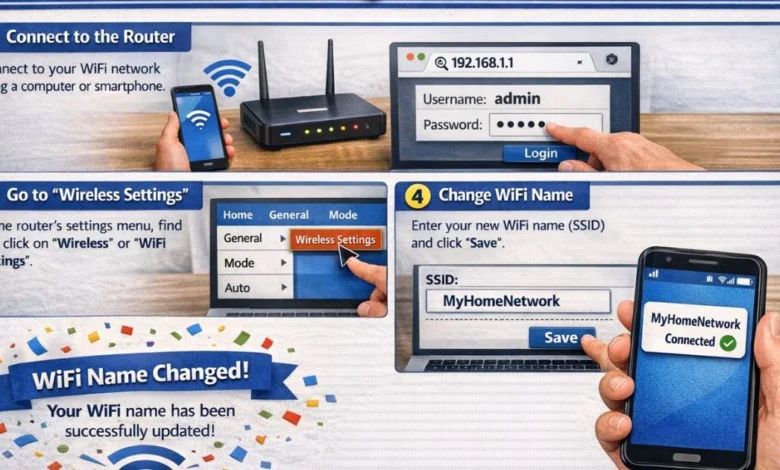
If you are searching for how to change WiFi name, the steps are almost the same on most routers. First, connect to your router using a phone or computer and open a browser. Type the router IP address, then log in with the admin username and password. After entering the settings page, go to Wireless, WiFi Settings, or WLAN depending on the router brand. Find the field called SSID, WiFi Name, or Network Name, enter the new name, save the changes, and reconnect your devices.
Step 1: Open Router Login Page
The first step in how to change WiFi name is opening the router login page. Use Chrome, Edge, Safari, or any browser on a device already connected to the router. Type 192.168.0.1 or 192.168.1.1 in the address bar and press enter. If the page does not open, check the exact router login address printed on the sticker. This will take you to the admin panel where you can change the network name.
Step 2: Log In to Router Settings
To continue with Update your SSID settings, enter the router admin username and password on the login page. These details are used to access the router dashboard and are not the same as the WiFi password used for internet access. If the default login does not work, the details may have already been changed by your provider or another user. In that case, check the router sticker or use the internet provider’s app if available. Once logged in, you can move to the wireless settings.
Step 3: Change the WiFi Name
This is the main step in how to change WiFi name on any router. Open the Wireless or WiFi section and look for SSID or Network Name. Remove the current WiFi name and type the new one you want to use. Keep it simple, clear, and avoid personal details like your full name or house number because nearby users can see your WiFi name. If your router has separate 2.4 GHz and 5 GHz bands, you may need to rename both networks.
Step 4: Reconnect Your Devices
After you finish Update your SSID settings, the router may disconnect all connected devices for a short time. This is completely normal because the old network name disappears and the new one starts broadcasting. Wait about a minute, then open the WiFi list on your phone or laptop and find the new WiFi name. Connect to it using the same password unless you changed the password too. Once reconnected, the process is complete.
Tips for Choosing a Good WiFi Name
After learning how to change WiFi name, it is important to choose a name that is easy to remember and easy to identify. A good WiFi name should be short, clear, and simple enough for everyone in your home to recognize. Avoid adding personal details like your full name, apartment number, or phone number because nearby users can see the network name. If you use separate 2.4 GHz and 5 GHz bands, adding labels like -2.4G and -5G can make them easier to identify. A practical WiFi name always works better than a confusing or overly long one.
WiFi Name vs WiFi Password
Many users who search how to change WiFi name also confuse the WiFi name with the WiFi password. The WiFi name is the label shown in the list of available networks, while the WiFi password is the key required to connect to that network. Changing the name does not automatically change the password. However, both options are usually located in the same wireless settings section inside the router dashboard. If needed, you can update both settings at the same time.
| Setting | Purpose |
|---|---|
| WiFi Name (SSID) | Shows network name |
| WiFi Password | Controls access |
| Router Admin Password | Protects router settings |
Why the New WiFi Name Is Not Showing
Sometimes after following how to change WiFi name, the new network name may not appear right away. This usually happens because the router is still refreshing the wireless signal or the device is showing an older cached list of networks. Wait one or two minutes, then turn WiFi off and back on again on your phone or laptop. In some cases, restarting the router once helps the new WiFi name appear faster. You should also check that you saved the changes properly in the router settings.
FAQs
1. How do I change my WiFi name?
Log into your router, open wireless settings, change the SSID or network name, and save the changes.
2. Is WiFi name the same as SSID?
Yes, WiFi name and SSID are the same thing.
3. Will devices disconnect after changing WiFi name?
Yes, devices disconnect briefly and then need to reconnect to the new network name.
4. Can I change WiFi name from my phone?
Yes, you can use a browser or the router app on your phone.
5. Does changing WiFi name make internet faster?
No, it only changes the network label, not the speed.
Conclusion
Changing your WiFi name is a simple yet effective way to make your network easier to manage, more secure, and easier for your devices to identify. By following the steps outlined in this guide, you can quickly rename your WiFi network on any router without technical hassle. Remember to choose a clear and memorable name, avoid personal details, and update both the 2.4 GHz and 5 GHz networks if applicable. Once done, reconnect your devices to enjoy a well-organized and safe network. Start today and take control of your WiFi for a smoother, faster, and more secure internet experience!