Why Is My Second Monitor Blurry on Windows 11? (6 Step Guide)
If you’re searching for “why is my second monitor blurry windows 11,” you’re likely dealing with incorrect display scaling, the wrong screen resolution, or outdated graphics drivers. Fortunately, you can fix the problem in just a few minutes. Right-click any blank space on your desktop, open Display Settings, select your second monitor, and change the Scale setting to 100% or the Recommended value. This simple adjustment often restores sharp text and clear visuals without requiring a full system reboot.
Quick Troubleshooting Checklist
Before diving into the detailed troubleshooting methods, quickly verify your current hardware and operating system settings against this checklist:
- Verify if Display Scaling is set to Recommended (Step 1)
- Ensure Resolution matches monitor’s native hardware specs (Step 2)
- Check if ClearType Text Tuner is calibrated (Step 3)
- Confirm Graphics card drivers are up to date (Step 4)
- Activate High-Performance graphics profile for blurry apps (Step 5)
- Ensure Video cable is connected directly without low-quality hubs (Step 6)
Step 1: Fix Mismatched Display Scaling
When dealing with a dual-screen setup, mismatched desktop scaling is the primary reason why a blurry second monitor happens on modern PCs. The computer often struggles to show text smoothly when you mix screens that have different physical sizes or pixel densities.
To fix this, right-click on your main desktop screen and select Display Settings. You will see your screens shown as boxes labeled 1 and 2 at the top of the window.
Click on the box for your second monitor so your changes only apply to that specific screen. Scroll down to the Scale & layout section, click the dropdown menu next to Scale, and select the value marked as Recommended.
Step 2: Lock the Correct Native Resolution
Running a high-end external screen below its actual factory resolution forces the system to stretch the picture pixels. This artificial stretching causes text to look fuzzy and makes your app windows blurry.
Make sure your second monitor is still selected at the top of the display menu. Move down to the Display resolution section.
Click the menu and ensure it matches the actual pixel count of your hardware. Never pick a lower resolution unless it has the official Recommended tag, as wrong sizes break text clarity.
Step 3: Run ClearType Text Tuner
Calibrating Font Smoothing
Windows uses an internal subpixel rendering tool to make on-screen text look sharp. If these settings get messed up during a regular system update, you will notice immediate jagged edges on a blurry external monitor.
Open your Windows start menu, type Adjust ClearType text into the search bar, and open the tool. Check the box to turn ClearType on, click next, and follow the simple guide by picking the text samples that look clearest to your eyes.
Tuning Multiple Monitors Separately
Sometimes this tool only fixes your main laptop screen while leaving external monitors unoptimized. You must make sure your secondary display is turned on and connected properly before running the tuning wizard.
The tool will ask if you want to optimize all your screens. Follow the steps for your second monitor to match the text sharpness with your external panel hardware profile.
Step 4: Fix Graphics Drivers and Refresh Rates
Reinstall Corrupted GPU Drivers
Old or broken graphics card software prevents your system from sending a clean video signal to extra screens. If you recently updated your operating system, installing fresh driver packages is highly recommended.
Go directly to the official download pages for NVIDIA Drivers, AMD Drivers, or Intel Graphics Downloads depending on your PC hardware. For deep technical configurations, you can also consult the authoritative Microsoft Guide on Fixing Blurry Apps in Windows.
Download the latest stable driver for your graphics card. During setup, choose Custom Installation and select the clean install option to completely clear out old, buggy monitor profiles.
Match Refresh Frequencies
Using a fast gaming monitor alongside a standard 60Hz secondary display screen can cause visual lag. This speed difference confuses the system desktop manager, which explains why your fuzzy second screen stutters when you move apps between screens.
To fix this, go back to your main display menu and click on Advanced display. Select your external monitor from the dropdown list at the top. Set this to the highest safe speed your monitor supports to make window movements completely smooth.
Step 5: Adjust Advanced Windows Graphics Preferences
Fix Scaling for Older Apps
Older desktop programs built before modern systems cannot handle multi-screen setups. This software limitation causes specific app windows to look pixelated when you drag them onto a newer external screen.
To fix this, right-click the shortcut icon of the blurry app and open Properties. Go to the Compatibility tab. Click the Change high DPI settings button. Check the box under the scaling override section, set the dropdown to Application, and save the changes.
Set High-Performance Graphics Profiles
If certain programs like web browsers or editing tools still show fuzzy text, forcing them to use your main graphics card will fix the issue. Open your settings menu and perform the following quick steps:
- Open your system Settings panel.
- Click on System from the sidebar and open Display.
- Scroll down and select the Graphics sub-menu.
- Choose your target blurry App from the list and click Options.
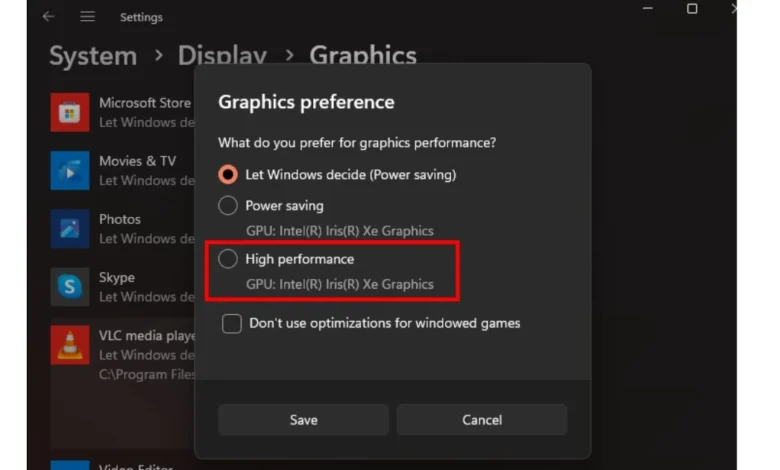
- Select High Performance from the preference window and hit save.
This ensures your computer uses full graphics power to render that app clearly on your external monitor instead of relying on default power-saving choices.
Step 6: Inspect Hardware Cables and Signal Integrity
Cheap or damaged video cords will degrade your digital signal, which leads directly to second monitor blur issues on Windows 11. Old or standard cables do not have enough bandwidth to run multiple high-resolution screens at the same time.
Check your HDMI or DisplayPort cords for sharp bends, cracks, or loose plugs. Try plugging the cable directly into your computer instead of using cheap USB hubs or docking stations to rule out hardware problems.
The Bottom Line: Clear Dual-Screen Setup
Fixing a blurry second monitor does not require expensive repairs. In most cases, it is simply a matter of correcting your scaling percentages or matching the native screen resolution in your display settings. By following this guide, updating your graphics card software, and running the ClearType text tool, you can easily get a sharp, crisp picture on both screens.
Final Diagnostic Tip: If none of these software fixes work, try testing the monitor on another PC or swap out the physical cable entirely. This helps isolate whether the blurriness stems from a hardware defect within the panel itself or a lingering operating system profile bug. If you want to optimize your ecosystem further, read our comprehensive guide on how to handle Windows 11 black screen errors or drop a comment below with your monitor model for custom help.
(FAQ’s)
Can a damaged HDMI cable cause a monitor to look blurry instead of completely black?
Yes, bad or low-quality video cables can degrade the digital signal, causing fuzzy text and visual ghosting without cutting the connection.
Why does my second monitor look blurry only when I open specific old programs?
Older software lacks modern scaling codes, which forces the operating system to stretch the application windows and make them look pixelated.
Will using a cheap USB-C docking station make my secondary display look fuzzy?
Yes, generic docking stations often cap your maximum screen resolution and refresh speeds below what your monitor actually supports.
Does changing my main monitor resolution affect the sharpness of my secondary display?
No, Windows handles display resolutions completely independently for each screen as long as you are using the Extend display mode.
Why did my external monitor become blurry immediately after a Windows 11 update?
Updates can sometimes reset your custom graphics settings or replace stable drivers with generic versions, requiring a manual driver reinstallation.