How to Take a Screenshot on HP Laptop: The Ultimate 2026 Guide
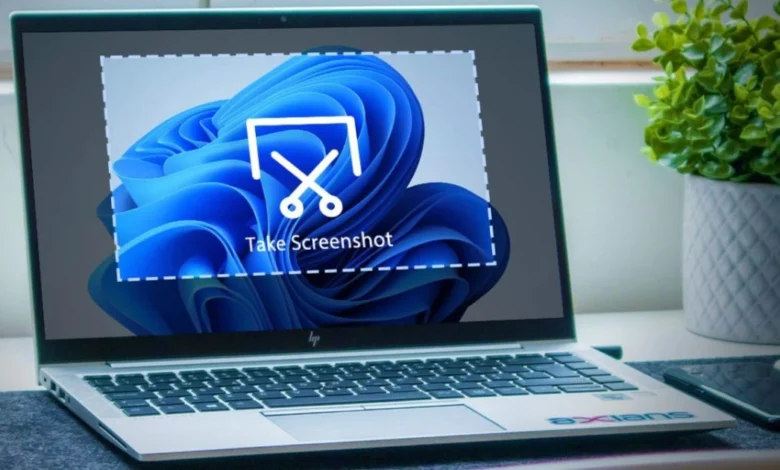
Capturing your screen is a fundamental skill for troubleshooting, sharing information, or saving digital memories on your modern device. Whether you are using a professional EliteBook or a sleek Pavilion, knowing how to take a screenshot on HP laptop efficiently can save you significant time during your workday. HP devices integrated with Windows 11 offer a variety of native shortcuts and built-in tools that cater to different user needs, from full-screen captures to specific window snips. Understanding these methods ensures that you can document technical errors or save important data with just a few keystrokes. In this guide, we will explore the most reliable techniques that work across all HP models to ensure you never miss a vital piece of on-screen information again.
Mastering the Print Screen (PrtSc) Shortcut Key
The most traditional way to handle a screen capture is by utilizing the dedicated Print Screen button found on almost every HP keyboard layout. When you learn how to take a screenshot on HP laptop using the PrtSc key, you are essentially copying the entire current view to your system’s clipboard for immediate pasting into apps like Paint or Word. On some smaller HP models, you might need to hold the “Fn” key simultaneously to activate the function, especially if the key shares space with a brightness or volume control. This method is perfect for quick captures where you don’t immediately need a saved file but rather a quick image to share in a chat or document. If you prefer a direct save, pressing the Windows Key + PrtSc is the standard way how to take a screenshot on HP laptop and automatically send a PNG file to your dedicated Screenshots folder.
Utilizing the Advanced Snipping Tool for Precision
Windows has evolved its native tools, and the Snipping Tool is now the gold standard for users who demand precision and editing capabilities immediately after capture. By pressing Windows + Shift + S, you activate a specialized overlay that allows you to choose between rectangular, free-form, window, or full-screen modes instantly. This is often the preferred method for those wondering how to take a screenshot on HP laptop when they only need a specific portion of a webpage or a single dialogue box. Once the area is selected, a notification appears allowing you to crop, highlight, or annotate the image before saving it to your drive. For many professionals, this technique is the most efficient version of how to take a screenshot on HP laptop because it avoids the need for heavy external editing software.
Quick Reference: HP Screenshot Shortcut Table
| Method | Key Combination | Best Use Case |
| Full Screen (Clipboard) | PrtSc | Fast pasting into emails or documents |
| Auto-Save Full Screen | Windows + PrtSc | Creating a library of saved images |
| Active Window Only | Alt + PrtSc | Capturing just one specific open app |
| Partial Screen Snip | Windows + Shift + S | Precision cropping and annotation |
| Tablet/360 Mode | Power + Volume Down | When the keyboard is not accessible |
Finding Your Saved Screenshots on HP Devices
A common frustration for many users is not knowing where their digital captures go after the screen flashes or the shortcut is pressed. When you execute the command for how to take a screenshot on HP laptop using the auto-save shortcut, Windows creates a sub-folder within your primary “Pictures” directory specifically for these files. Navigating to This PC > Pictures > Screenshots will reveal all your captured images organized by the date they were created. If you used a method that only copies to the clipboard, you must manually paste the image into an editor to see it. Learning exactly how to take a screenshot on HP laptop and locate the file path is a great habit for students and professionals who rely on visual documentation for their daily projects or research.
Troubleshooting Common Screenshot Issues on HP
Sometimes, the hardware keys might not respond as expected, leading users to wonder how to take a screenshot on HP laptop when the PrtSc button seems disabled. This often happens if the “F Lock” key is engaged or if a specific driver update is pending for the integrated keyboard software. Another common hurdle is the “Fn” key requirement, which varies depending on whether your HP laptop defaults to “Action Keys” or standard “Function Keys” in the BIOS settings. If you are struggling with how to take a screenshot on HP laptop, checking the OneDrive sync settings is a smart move, as it sometimes hijacks the Print Screen key to save images directly to the cloud. Resolving these minor technical glitches ensures that your screen-capturing workflow remains uninterrupted and efficient.
Why Semantic Context Matters for Modern HP Users
In the current era of AI-driven search, understanding the semantic relationship between hardware and software is key to mastering your device. When researching how to take a screenshot on HP laptop, it is helpful to know that HP-specific software like “HP Palette” or “HP QuickDrop” can also facilitate screen sharing across multiple devices. Modern HP Envy and Spectre models often come with stylus support, allowing you to use a digital pen to trigger screen captures with a click of a button. This level of integration shows how the simple act of how to take a screenshot on HP laptop has transformed into a multi-device productivity feature. By leveraging the full suite of Windows and HP tools, you can transform a simple image into a powerful communication asset.
Frequently Asked Questions
1. Where is the Print Screen button on an HP laptop?
The Print Screen key is usually on the top-right of the keyboard labeled PrtSc, PrtScn, or Print Scr.
2. How to take a screenshot on HP laptop without a keyboard?
Press the Power + Volume Down buttons together in tablet mode to take a screenshot.
3. Why is my HP screenshot not saving?
Your screenshot may not save unless you press Windows + PrtSc, otherwise it copies to clipboard only.
4. Can I take a scrolling screenshot on HP laptop?
Yes, you can use tools like GoFullPage or ShareX for scrolling screenshots.
5. How do I take a screenshot of a specific window on HP laptop?
Press Alt + PrtSc after selecting the window to capture only that active screen.
Conclusion
Mastering the various ways of how to take a screenshot on HP laptop is an essential skill that bridges the gap between simple usage and professional productivity. From the lightning-fast Print Screen shortcut to the versatile Snipping Tool, HP users have an array of powerful options at their fingertips to document their digital lives. By understanding where files are saved and how to troubleshoot common key conflicts, you can ensure a smooth, error-free experience every time. Remember that the best method for how to take a screenshot on HP laptop depends entirely on whether you need a quick share or a permanent, annotated file for your records. As technology continues to evolve, staying updated on these essential shortcuts will keep you ahead of the curve in any digital environment.
Flash Topic