Dangerous WhatsApp Settings on iPhone You Should Turn Off in 2026
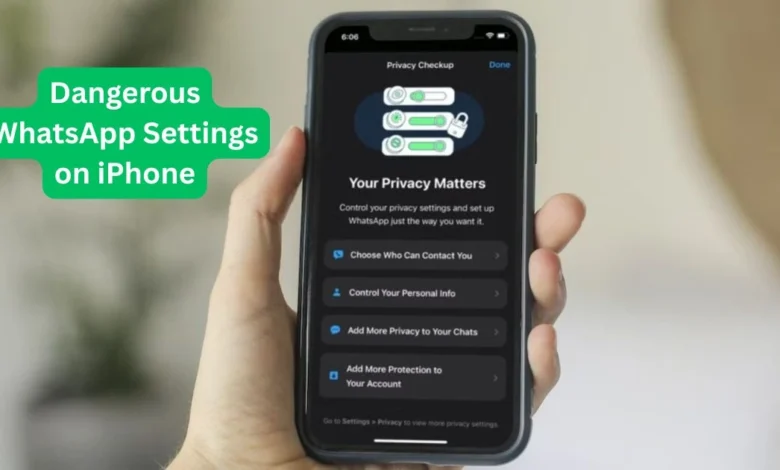
In 2026, digital privacy is more important than ever. While iPhones are known for strong built-in security, apps like WhatsApp can still reveal more personal information than many users realize if certain settings are left unchanged.
Many people assume end-to-end encryption means complete privacy, but that’s only part of the picture. Your messages may be protected, yet things like online activity, media storage, profile visibility, and backup security can still create privacy risks.
That’s why reviewing the Dangerous WhatsApp Settings on iPhone is so important if you want better control over your chats, backups, and personal data.
If you haven’t checked your privacy options recently, now is the right time. In this guide, we’ll cover the most important Dangerous WhatsApp Settings on iPhone that you should turn off or adjust right away to make your account safer in 2026.
Note: Some settings may appear slightly different depending on your iPhone model, iOS version, or the latest WhatsApp update.
Why Dangerous WhatsApp Settings on iPhone Should Be Reviewed in 2026
WhatsApp offers strong encryption, but privacy is not just about message security. Metadata and account settings can still reveal useful information about your activity, habits, and identity.
For example:
- Your profile details
- Live location
- Backup settings
- Call connections
…may expose more than expected if left on their default options.
Many of these Dangerous WhatsApp Settings on iPhone are enabled by default, which means users may share more information than they realize.
A quick privacy check can help reduce tracking, prevent unwanted contact, and give you more control over what others can see.
1. Turn Off Auto-Save to Photos
Automatic media saving is one of the most overlooked privacy settings on iPhone. Photos and videos from chats may be stored directly in your iPhone’s Photos app, where they can become easier to access than you intended.
Why it’s risky:
- Private or unwanted media from chats can appear in your gallery
- Images may sync with iCloud Photos across your Apple devices
- It can quickly fill up storage with unnecessary files
How to fix it:
- Open WhatsApp
- Go to Settings
- Tap Chats
- Turn OFF Save to Camera Roll
2. Enable End-to-End Encrypted Backup
WhatsApp backups are not automatically as secure as chats. Without encryption, old chats, photos, and voice notes could be exposed if your iCloud account is compromised.
Why it’s risky:
- Unprotected backups may be exposed if iCloud is hacked
- Older messages and media could become vulnerable
- Sensitive conversations remain accessible longer than expected
How to fix it:
- Go to Settings > Chats > Chat Backup
- Tap End-to-End Encrypted Backup
- Select Turn On
- Create a strong password or securely store the 64-digit key
Important: If you forget this password, WhatsApp cannot recover your encrypted backup.
3. Hide Last Seen and Limit Online Visibility
Your Last Seen and Online status can reveal your daily routine. Leaving these visible makes it easier for others to track your activity.
Why it’s risky:
- People can monitor your activity patterns
- Scammers can confirm your number is active
- It may increase unwanted messages or targeted spam
How to fix it:
- Go to Settings > Privacy
- Tap Last Seen & Online
- Set Who can see my last seen to My Contacts or Nobody
- Set Who can see when I’m online to Same as Last Seen
4. Disable Read Receipts
Read Receipts (blue ticks) show when you’ve read a message. Disabling this gives you more privacy and control.
Why it’s risky:
- Others can track your response habits
- Creates pressure to reply quickly
- You lose the ability to read messages privately
How to fix it:
- Go to Settings > Privacy
- Turn OFF Read Receipts
Note: Disabling this also prevents you from seeing others’ read receipts.
5. Restrict Who Can Add You to Groups
Open group settings can lead to spam or scam group additions. This is one of the most ignored Dangerous WhatsApp Settings on iPhone.
Why it’s risky:
- Strangers may see your phone number and profile photo
- Scam groups may contain phishing links or fake offers
- Unwanted group adds can create privacy risks
How to fix it:
- Go to Settings > Privacy > Groups
- Change Everyone to My Contacts
This ensures only saved contacts can add you directly.
6. Stop Unused Live Location Sharing
Live Location is useful temporarily, but leaving it active is risky.
Why it’s risky:
- Reveals your home, work, or travel locations
- Extended sharing can increase stalking or safety risks
- Drains battery if left on
How to fix it:
- Open WhatsApp > Settings > Privacy > Live Location
- Review active sessions
- Tap Stop Sharing where needed
Also check iPhone permissions:
- Go to Settings > Privacy & Security > Location Services > WhatsApp
- Set it to While Using the App
7. Turn On Protect IP Address in Calls
This feature routes your calls through WhatsApp servers, adding privacy.
Why it’s risky:
- Your IP address may be exposed during calls
- Skilled users could estimate your region or provider
- Calls may be slightly affected on weak networks
How to fix it:
- Go to Settings > Privacy > Advanced
- Turn ON Protect IP Address in Calls
8. Enable Two-Step Verification (Highly Recommended)
Two-Step Verification adds an extra PIN when your WhatsApp account is registered on a new device.
Why it’s important:
- Extra protection if someone tries to register your number
- Reduces account hijacking risks
- Secures account beyond SMS verification
How to enable it:
- Open WhatsApp > Settings > Account
- Tap Two-Step Verification
- Tap Enable
- Create a 6-digit PIN
- Add a recovery email address
Bonus Tip: Turn On Face ID Lock
Face ID lock adds an extra layer before WhatsApp can be opened.
How to enable it:
- Go to Settings > Privacy > Screen Lock
- Turn ON Require Face ID
- Set the timer to Immediately
This simple step improves privacy if someone accesses your unlocked iPhone.
(FAQ’S)
1. Is WhatsApp on iPhone safer than Android?
Both platforms are secure, but iPhone has tighter app controls. Your protection depends on how you configure WhatsApp settings.
2. Does hiding Online status affect Read Receipts?
No, these are separate settings. You can disable one without affecting the other.
3. Will Protect IP Address in Calls reduce call quality?
Minimal difference; may notice a slight delay on weak networks.
4. Which WhatsApp privacy setting should I change first?
Start with End-to-End Encrypted Backup or Two-Step Verification for maximum protection.
5. What are the most Dangerous WhatsApp Settings on iPhone?
Auto-save to Photos, unencrypted backups, open group permissions, visible Last Seen status, active Live Location sharing, and disabled Two-Step Verification.
Conclusion
WhatsApp is secure in many ways, but your privacy depends on how you configure it. By reviewing the Dangerous WhatsApp Settings on iPhone and adjusting a few key privacy options, you can reduce tracking risks, limit unwanted access, and keep your chats, media, and personal details safer in 2026.
Simple changes like turning off auto-save, restricting group invites, enabling encrypted backups, and activating Two-Step Verification can make a real difference. Reviewing your settings after each WhatsApp or iOS update is a smart habit.
A few small adjustments today can go a long way in protecting your personal data.
Now it’s your turn! Which of these WhatsApp privacy settings on iPhone have you already changed, and which one will you update right now? Drop a comment below and let’s discuss staying safe in 2026.