9 Simple Ways to Take a Screenshot on Chromebook (Even If You’re a Beginner!)
A complete guide to 9 simple ways to take a screenshot on Chromebook.How to Screenshot on Chromebook
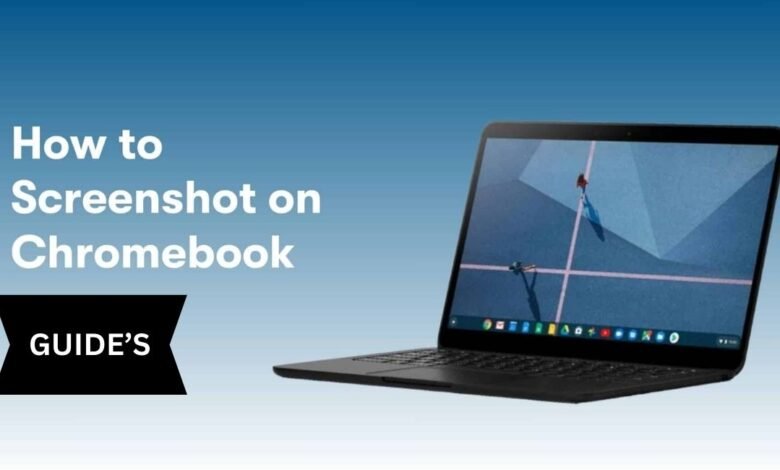
Have you ever seen something on your Chromebook and thought, “I wish I could save this!”? Maybe it’s a funny meme, an online receipt, or a school assignment. Don’t worry—this guide on 9 Simple Ways to Take a Screenshot on Chromebook will show you how to capture your screen quickly and easily using built-in tools.
In this guide, we’ll cover 9 simple ways to take a screenshot on a Chromebook, step by step. By the end, you’ll feel confident capturing, saving, editing, and sharing Screen clipping– even if you’ve never used a Chromebook before.
1. What Exactly is a Screenshot?
A screenshot is basically a digital photo of your screen. Whatever you see can be captured and saved instantly.
Example:
You’re shopping online and want to keep a copy of your order confirmation. A Screen clipping captures everything – the order number, price, and date – in one image.
Types of Screenshots:
| Type | What It Does | Example Use |
| Full-Screen | Captures everything on your screen | Save a full webpage |
| Partial-Screen | Captures only the part you select | Save a table, chart, or map |
| Window Take a screen image | Captures only the active window | Save a chat box or app window |
💡 Tip:
Partial Screen clipping are perfect when you only need a section of your screen – like a map or a small chart.
2. Why Screenshots Are Super Useful
Screen clipping aren’t just for tech pros – they’re helpful for everyone. Here’s why:
- Save info quickly – Capture web pages, messages, or images
- Share instantly – Send Screen clipping via email, chat apps, or social media
- Create tutorials or guides – Perfect for teaching or explaining steps
- Keep proof – Save receipts, tickets, or confirmations
- Capture ideas – Save inspiration, memes, or designs for later
3. How to Take a Full-Screen Screen capture
Step-by-Step:
- Press Ctrl + Show Windows key
- The Show Windows key looks like a rectangle with two vertical lines in the top row.
- The screen flashes – that means your screenshot is taken.
- Go to the Downloads folder to find your Screen clipping.
Example:
You’re reading an online article and want to save the entire page. A full-screen Take a screen image captures everything in one go.
4. How to Take a Partial Screenshot
Step-by-Step:
- Press Ctrl + Shift + Show Windows key
- Click and drag your mouse to select the area you want
- Release the mouse to save
- Find it in the Downloads folder
Example:
You only want a specific map or chart from a webpage. A partial Screen capture saves exactly what you need without extra clutter.
5. Take Screenshots Using Touchscreen or Stylus
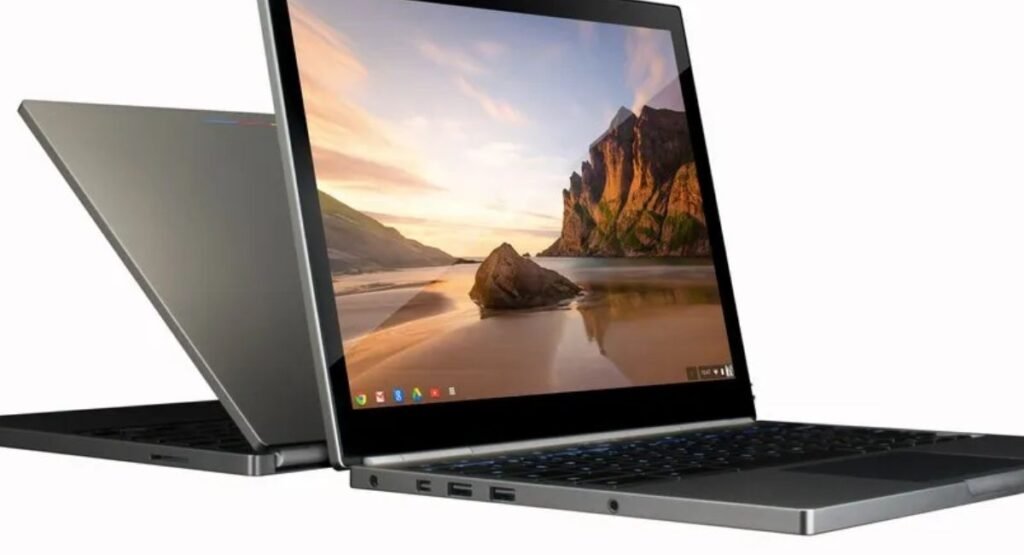
If your Chromebook supports a touchscreen or stylus:
- Press Power + Volume Down (just like a smartphone)
- Or use the Stylus menu to choose full or partial Take a screen image
💡 Quick Tip:
Touchscreen and stylus Screen clipping are perfect for capturing small sections or drawing notes directly on your screen shot.
6. Editing Screenshots on Chromebook
You don’t have to just save screen shots – you can edit them right away:
- Open the Files app
- Select your screen capture
- Click Open with > Image Editor
You can crop, highlight, add text, or even draw on your screen shot before sharing.
7. Who Should Use Chromebook Screenshots?
| User Type | Why Take a screen image Help Them |
| Beginners | Easy to learn and saves time |
| Students | Save slides, diagrams, or study materials |
| Professionals | Keep proof of emails, online forms, or receipts |
| Content Creators | Make tutorials, guides, or social content |
| Everyday Users | Capture memes, chats, or website info |
Even if you’re new to tech, screen captures are simple, practical, and life-saving!
8. Common Beginner Mistakes (and How to Avoid Them)
| Mistake | How to Fix It |
| Not knowing the Show Windows key | Look for the rectangle with two vertical lines |
| Thinking screenshots save to Desktop | They are in Downloads folder |
| Choosing the wrong screen shot type | Decide between full, partial, or window |
| Forgetting storage limits | Move screenshots to a folder or cloud storage |
| Skipping editing or cropping | Use Image Editor before saving or sharing |
💡 Tip Box:
Create a folder called “Screen shots” in Downloads. It keeps everything neat and easy to find.
9. Extra Tools and Advanced Tips
Sometimes, Chromebook’s built-in tools aren’t enough. Here are some extra tips:
| Tool/Tip | What It Does |
| Nimbus screen capture | Capture, annotate, and even record videos |
| Lightshot | Quick screen captures with editing tools |
| Google Keep | Save screen capture as notes for later |
| Cloud Storage (Google Drive) | Keep screen captures safe and free up space |
💡 Pro Tip:
If you take Screen captures often, move them to cloud storage to free up space and make them easy to share.
FAQs About Chromebook Screenshots
Q1: Can I take a screenshot without a keyboard?
Yes! Use the touchscreen or stylus menu if your Chromebook supports it.
Q2: Where do screenshots go?
They are saved in the Downloads folder by default.
Q3: Can I edit screenshots?
Yes! Use the built-in Image Editor or Chrome extensions for more options.
Q4: Can I screenshot videos?
Some streaming sites block Screen clipping, but most websites allow them.
Q5: Can I share screenshots directly?
Yes! Open the Screen capture and click Share to send via email, chat, or Google Drive.
Q6: Do screenshots take up a lot of space?
Each one is small, but many screen capture can fill storage. Use cloud storage to save space.
Conclusion
Learning 9 simple ways to take a screenshot on Chromebook is one of the easiest skills to learn. Screen clippinghelp you:
- Save time and information
- Share content quickly
- Keep proof of online purchases or messages
- Create tutorials or guides
Remember:
- Ctrl + Show Windows key = full screenshot
- Ctrl + Shift + Show Windows key = partial screenshot
- Organize screenshots in a folder or cloud storage
Once you know how to take and use Screen clipping, your Chromebook becomes much more powerful and beginner-friendly.